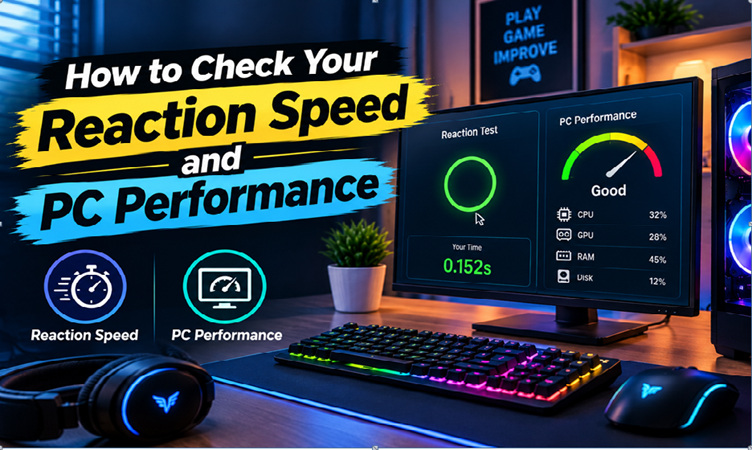
A smooth gaming experience depends on quick responses, reliable hardware, and consistent computer performance. Players often focus on graphics and frame rates, but system stability and regular maintenance are equally important. While a stress test PC review demonstrates how your computer performs under hard workloads, a response time test helps gage how quickly you respond to a signal. Knowing both will enable you to see any problems and make better system maintenance decisions.
What Is a Reaction Time Test?
A reaction time test measures the time between a signal appearing and your response to it. Many online tests use a visual prompt, such as a screen changing color, that tells you when to click. The result is generally measured in milliseconds.
These tests can be useful for gamers who want to understand their response speed. However, results may vary depending on concentration, tiredness, mouse settings, display delays, and browser performance. Performing several attempts under similar conditions can provide more consistent results than relying on a single score.
Appropriate testing circumstances can also be created by shutting off unused programs and maintaining computer responsiveness.
Why Reaction Speed Matters for Gaming
Quick reactions can be useful in competitive games, especially when players need to respond to unexpected movements or changing situations. Nonetheless, merely having fast reaction times does not guarantee success in gaming. Game knowledge, accuracy, positioning, and decision-making also play important roles.
If your computer experiences delays, your actions may not appear on the screen as quickly as expected. Background applications and system performance issues can contribute to an inconsistent experience. Checking your computer’s condition alongside your reaction time test results can help you understand possible causes of delays.
What Is a Stress Test PC Evaluation?
A stress test PC evaluation examines how a computer behaves when its hardware handles a demanding workload. Depending on the software, testing may focus on the processor, graphics card, or memory.
This type of assessment can help identify potential stability issues when a computer freezes, crashes, overheats, or struggles during demanding games. A system that performs well during everyday browsing may behave differently under a heavy workload.
Before starting a test, save important work, ensure proper ventilation, and monitor system temperatures. Use suitable diagnostic software and stop the test if your computer becomes unstable or shows signs of overheating. Results can provide useful information, but they do not automatically identify every hardware or software problem.
Improve PC Performance With Advanced SystemCare
If your computer feels slow, unnecessary files and excessive background activity may contribute to the problem. Advanced SystemCare 19 is a PC maintenance utility that offers cleanup and optimization features designed to help users manage common performance concerns.
Its junk file cleaning features can help remove unnecessary files, while startup optimization options allow users to review programs that launch with Windows. Reducing unnecessary startup activity may help the computer start more efficiently and leave more resources available for other tasks.
Advanced SystemCare provides automatic maintenance functions and a software updater for compatible applications. These options can help simplify routine PC maintenance and make it easier to keep certain aspects of the system organized.
To get started, install Advanced SystemCare from a trusted source and review the available maintenance options. Check proposed changes before applying them, and avoid removing files or disabling services that Windows or other applications require.
For users experiencing sluggish performance due to unnecessary files or startup activity, Advanced SystemCare is a useful option to consider. However, its results depend on the computer’s condition. It cannot guarantee higher gaming frame rates or repair every hardware problem, so persistent crashes and overheating still require proper diagnosis.
Additional Ways to Maintain PC Performance
Along with using Advanced SystemCare, several practical habits can help keep your computer running reliably. Keep Windows and device drivers updated, maintain sufficient free storage space, and close applications you do not need while gaming.
Windows Task Manager can help identify programs using excessive CPU or memory resources. If performance problems continue, check system temperatures and investigate possible hardware limitations or software conflicts. Adjusting graphics settings to match your hardware can also improve gaming consistency.
Repeat your reaction time test under similar conditions when comparing results. If your computer becomes unstable during a stress test PC evaluation, investigate the underlying issue instead of relying solely on optimization software.
Final Thoughts
A reaction time test helps you understand your response speed, while a stress test PC evaluation provides insight into system stability under demanding workloads. Both evaluations can assist you in making knowledgeable choices regarding your gaming configuration.
For additional maintenance, Advanced SystemCare 19 offers tools for cleaning unnecessary files, managing startup activity, and supporting routine system optimization. Incorporating these attributes with comprehensive testing and regular maintenance can help you attain a more seamless and reliable PC experience.
About the Author